%20playeasy%20logo.png?width=150&height=34&name=(PNG%20BLACK)%20playeasy%20logo.png)
How It Gets Built
Here's what happens before your Event's AI Tour Guide is ready to activate:
1. Send Us Your Events Send us your list of events that need to be marketed on Playeasy and we'll create the experiences.
2. Curated Experiences Every experience is curated with the top things to do in that destination.
3. Event Support Chat Compass AI is also set up to answer event support questions.
4. Attendee Activation We send back content (Event AI Tour Guide links) in an Excel sheet, along with best practices for sharing with attendees.
That's where this guide picks up. Below are the best practices for getting the most out of your Event's AI Tour Guide once it's live — the three touchpoints that get attendees engaged before, during, and after they arrive: your event webpages, a pre-event email, and on-site QR codes.
Before you start, make sure you have your Event AI Tour Guide URL for each event. This was sent to you as an Excel sheet with one URL per event — you'll use the matching URL for each step below.
Step 1: Add Your Event's AI Tour Guide to Your Event Webpages
The more visible your Event's AI Tour Guide is on your website, the more attendees will use it. Add a linked activation image to your registration page, schedule page, hotel page, and anywhere else attendees visit.
Generate your activation image
- Go to the Ad Generator.
- Enter your organization's name and upload your logo.
- Click Download PNG.
Add the image to your website
Once you've downloaded the image, upload it to your website and link it to your event's AI Tour Guide URL (from your Excel sheet). Exactly how you do this depends on your website platform:
- WordPress: Link an image – WordPress.com Support
- Wix: Wix Editor: Adding a Link to an Image – Wix Help Center
- Squarespace: Image clickthrough URLs – Squarespace Help Center
Using a different platform? The general steps are the same everywhere: upload the image, select it, find the "link" or "clickthrough URL" option, and paste in your event's AI Tour Guide URL.
Where to place it: registration page, schedule page, hotel/travel page, and any other high-traffic page attendees visit for the event.
Step 2: Send a Pre-Event Email
Introduce attendees to their AI concierge before they arrive, while they're already thinking about logistics — parking, restaurants, things to do. That's exactly when the concierge is most useful.
Recommended timing: Send this as its own dedicated email 1–2 weeks before the event, once attendees are actively planning their trip but before travel logistics are locked in. If your event has a longer lead time, a second reminder send 2–3 days out can help too.
The email template
Use the template below. Just drop in your event name and the matching AI Tour Guide URL. Feel free to add your activation image from Step 1 to give it some color.
Subject: Your Personal AI Concierge for {Event Name}
Hi everyone,
We wanted to share something that should make your time with us even better.
We've set up an AI-powered concierge to help you and your group during the event – whether you have a quick question about the event itself, or you're looking for ways to fill your downtime. Just tap the link below and ask it anything:
- Questions about the event, schedule, or logistics
- Best restaurants and places to eat nearby
- Local attractions and things to do
- Hidden gems that most visitors never find
- Exclusive deals for our attendees
Everything it recommends is curated by real local experts – not generic search results – so you're getting the kind of tips you'd actually get from someone who lives there.
Access the AI Event Concierge (Your Event's AI Tour Guide, powered by Compass): {Insert your Event's AI Tour Guide URL from the Excel sheet here}
No app to download – it works right in your phone's browser. Bookmark it, share it with your group, and use it anytime to plan your trip before and during your stay.
We hope this helps you and your group make the most of your event experience.
See you soon,
[Event Organizer Name]
Step 3: Generate On-Site QR Codes
Attendees who missed the email or website link can still discover their Event's AI Tour Guide on-site. Print QR codes for registration desks, table tents, signage, or badges.
- Go to the QR Code Generator.
- Paste in your event's AI Tour Guide URL.
- Select if you'd like the full graphic or just the QR code and download.
- Print and place at registration desks, on table tents, or on badges.
Repeat for each event on your Excel sheet.
See It in Action
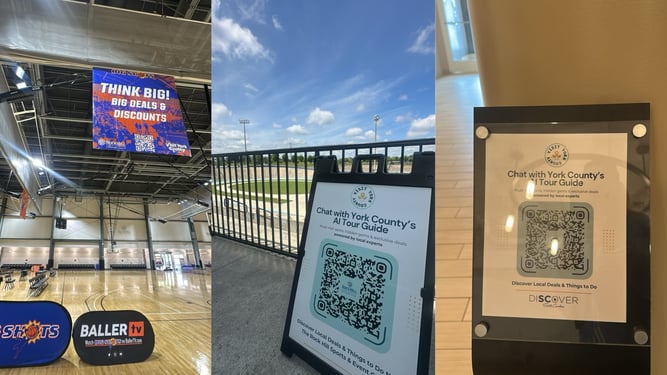
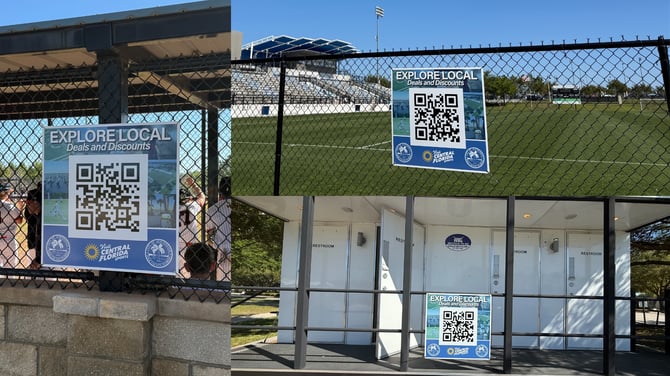
Bringing It All Together
Together, these three touchpoints get attendees engaged before, during, and after they arrive:
| Touchpoint | When | What It Does |
|---|---|---|
| Website activation image | Anytime attendees visit your site | Puts your Event's AI Tour Guide in front of attendees while they're researching the event |
| Pre-event email | 1–2 weeks before the event | Gets attendees planning ahead and bookmarking their AI Tour Guide before they travel |
| On-site QR codes | During the event | Catches attendees who missed the earlier touchpoints, right when they need local recommendations |
Every conversation, booking, and referral through your Event's AI Tour Guide is tracked and attributed back to your event — so you'll have the data to show the impact when it's time for your recap or renewal conversation.
Questions? Reach out to Ryan Quigley anytime.